

Malware can slow down your computer, display unwanted advertisements, redirect your browser, steal personal information, and cause applications to crash. Some threats operate quietly, so your computer may be infected even when nothing appears obviously wrong.
Malwarebytes is a security tool designed to detect and remove threats such as viruses, spyware, adware, potentially unwanted programs, Trojans, and ransomware. This guide explains how to use Malwarebytes to scan and clean a Windows computer safely.
Download Malwarebytes for your computer here
Common Signs That Your Computer May Have Malware
Malware does not always announce itself. However, you may notice one or more of these warning signs:
- Your computer suddenly becomes unusually slow.
- Pop-up advertisements appear frequently.
- Your browser redirects you to unfamiliar websites.
- Your homepage or search engine changes without permission.
- Unknown programs or browser extensions appear.
- Applications freeze or crash repeatedly.
- Your antivirus software becomes disabled.
- Your computer sends messages or emails you did not create.
- You notice unexplained changes to your files or passwords.
These symptoms can also be caused by software or hardware problems. Running a malware scan is a sensible first step in identifying the cause.
What to Do Before Starting the Malware Scan
Save your open work and close unnecessary applications before beginning. A scan may use some system resources, and Malwarebytes might need to restart your computer to complete the removal process.
If you believe someone is actively controlling your device or stealing information, disconnect it from the internet. Avoid accessing banking, email, shopping, or other sensitive accounts until the computer has been checked.
Back up important documents and personal photos if possible. However, avoid copying suspicious programs, unknown files, or executable files to your backup drive.
Step 1: Download Malwarebytes
Begin by downloading Malwarebytes from a trusted source. Avoid unofficial download websites because they may bundle legitimate software with unwanted programs.
Select the version designed for your operating system. This guide focuses mainly on Windows, although Malwarebytes also provides security products for Mac and mobile devices.
After the download finishes, locate the installation file—normally inside your Downloads folder.
Step 2: Install Malwarebytes
Double-click the downloaded installation file. Windows may display a User Account Control message asking whether you want to allow the application to make changes to your device. Confirm that the publisher and application name are correct, and then select Yes.
When the Malwarebytes Setup Wizard opens:
- Select Install.
- Choose the appropriate device type if asked.
- Follow the instructions displayed by the installer.
- Wait for the installation to finish.
- Open Malwarebytes.
Read each option carefully during setup. You may be offered a free trial or a paid plan, but the available choices can change over time.
Step 3: Check for Security Updates
Malwarebytes normally updates its threat information automatically. Nevertheless, check that the application is fully updated before scanning.
Security updates help the software recognize recently discovered threats. Scanning with outdated threat information could reduce the chance of detecting newer malware.
Keep your computer connected to the internet while Malwarebytes checks for updates—unless you disconnected it because you suspect an active attack.
Step 4: Run a Threat Scan
Open Malwarebytes and select the Scan button on the main dashboard. The program will begin checking important areas of your computer for suspicious activity.
Allow the scan to finish without closing Malwarebytes or turning off the computer. The required time depends on your device, the number of files stored on it, and the selected scan type.
While waiting, avoid downloading files, opening suspicious websites, or signing in to sensitive accounts.
Step 5: Review the Detected Threats
After the scan finishes, Malwarebytes will display a summary of the results.
If no threats were found, select Done. If the program detected suspicious items, review the list before taking action. The results may include malware, potentially unwanted programs, suspicious files, or unwanted browser-related software.
If you recognize an item as safe, do not immediately restore or allow it unless you are certain it is legitimate. Search for information about the file or ask a qualified computer technician when unsure.
Step 6: Quarantine the Threats
Select the detected threats and choose Quarantine. Quarantining isolates suspicious items so they can no longer operate normally or interfere with your computer.
This is generally safer than permanently deleting everything immediately. If a legitimate file is mistakenly detected, you may be able to restore it later from the Detection History. Only restore an item when you have verified that it is safe.
Malwarebytes may ask you to restart your computer to finish removing active threats. Save your work and allow the restart if requested.
Step 7: Scan Your Computer Again
After restarting, reopen Malwarebytes and run another Threat Scan. A second scan helps confirm that the original threats were successfully removed.
If Malwarebytes offers a deeper scan option, consider running it after the initial cleanup—especially when the first scan discovered multiple threats or the computer continues behaving strangely.
If the second scan finds nothing and the original symptoms have disappeared, the cleanup was probably successful. However, no security program can guarantee the detection of every possible threat.
Step 8: Review the Quarantine
To inspect quarantined items, open Malwarebytes and go to Detection History, followed by Quarantined items.
You can leave suspicious files in quarantine while confirming that your applications and computer continue working normally. When you are confident the quarantined items are malicious and no longer needed, you can delete them permanently.
Do not restore files simply because you recognize their names. Malware sometimes disguises itself using names similar to legitimate Windows files and popular applications.
Malwarebytes Free vs. Premium
The free version of Malwarebytes is useful for scanning a Windows PC or Mac and removing threats that are already present. However, manual scans are reactive: you must open the application and start a scan yourself.
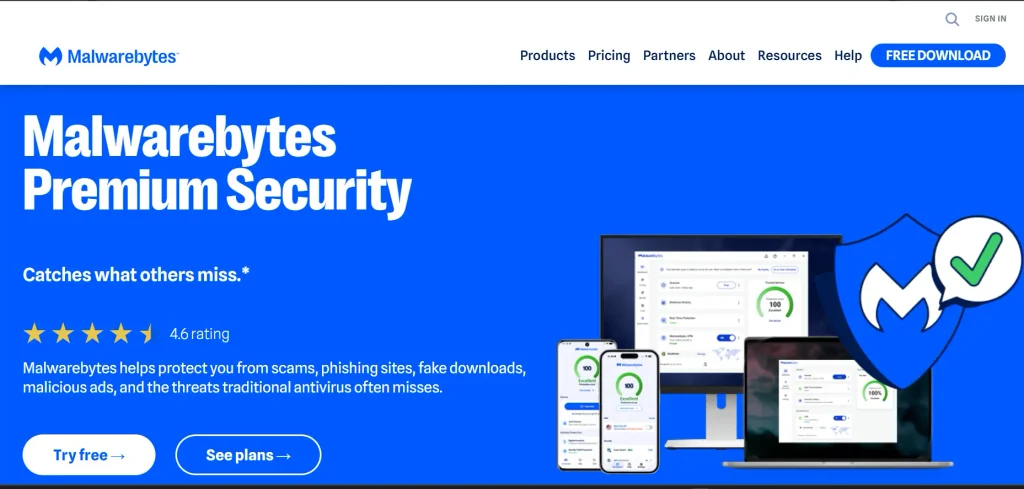
Malwarebytes Premium adds real-time protection designed to monitor the device and block certain threats before they can cause harm. Depending on the current plan, paid protection may also include scheduled scans and additional security features.
If you only need to investigate a possible infection, the free scanning option may be suitable. If you regularly shop, bank, work, or download files online, continuous protection may offer greater peace of mind.
Compare the available Malwarebytes protection options
How to Protect Your Computer After Removing Malware
Cleaning an infected computer is only part of the solution. Use these habits to reduce the risk of another infection:
- Keep Windows, browsers, and applications updated.
- Turn on real-time security protection.
- Avoid cracked software and unknown download websites.
- Do not open unexpected email attachments.
- Check links before clicking them.
- Use unique passwords and enable two-factor authentication.
- Remove browser extensions you no longer use.
- Back up important files regularly.
- Schedule routine malware scans.
If malware may have captured your passwords, change them from a separate, trusted device after cleaning the infected computer. Start with your email, banking, shopping, cloud-storage, and social-media accounts.
Frequently Asked Questions
Can Malwarebytes remove viruses for free?
Malwarebytes offers a free scanner that can detect and remove many existing threats. Premium plans provide additional protection, including real-time monitoring.
Should I restart my computer after quarantining malware?
Restart the computer if Malwarebytes asks you to do so. Some active threats cannot be completely removed until Windows restarts.
Can Malwarebytes work alongside another antivirus?
It may work alongside other security software, but running multiple real-time antivirus programs can sometimes create conflicts. Check the official compatibility guidance for your particular antivirus product.
What should I do if the malware returns?
Update Malwarebytes, run another scan, and check your browser extensions and recently installed programs. If the infection repeatedly returns—or involves ransomware, financial theft, or remote access—stop using the computer for sensitive activities and contact a qualified security professional.
Final Thoughts
Malwarebytes provides a straightforward method for scanning your computer, quarantining suspicious files, and removing detected malware. Download the program from a trusted source, update it before scanning, quarantine the detected threats, restart when requested, and perform a second scan to confirm the cleanup.
Get started with Malwarebytes and scan your computer
Regular updates, secure browsing habits, strong passwords, reliable backups, and real-time protection can help prevent future infections and keep your personal information safer.

Muse runs BikoMarketing, a publication focused on helping small
business owners and solo founders choose the right marketing tools,
build their tech stack, and grow without overspending on software
they don’t need.
Coverage includes email marketing platforms, marketing automation,
SaaS reviews, and tech recommendations — written for people who
want real answers, not marketing fluff.
📩 contact@bikomarketing24@gmail.com